 author
ssd speed
Tips to Speed Up Data Transfer of External HDD, SSD, and Pendrive in Windows
Transferring large files between your computer and external storage devices like HDDs, SSDs, and USB drives can sometimes feel painfully slow. Whether you’re copying games, videos, backups, or important documents, slow transfer speeds waste time and affect productivity.
Windows provides many built-in tools and settings to improve data transfer performance — and a few hardware tweaks can make a big difference too.
In this detailed guide, we’ll explore the most effective tips to speed up data transfer on external drives (HDD, SSD, and USB pendrives) in Windows.
1. Understand What Affects Transfer Speed
Before applying fixes, it’s important to understand what actually slows down file transfer:
- Drive type and speed: HDDs (mechanical) are slower than SSDs (solid-state).
- USB port version: USB 2.0 (up to 480 Mbps), USB 3.0 (5 Gbps), and USB 3.2 or USB-C (10–20 Gbps).
- Cable quality: Poor-quality or damaged USB cables limit speed.
- File size and quantity: Copying one large file is faster than thousands of small ones.
- File system type: NTFS and exFAT are faster than FAT32 for large files.
- Background processes: Antivirus scans, indexing, or Windows updates may slow transfers.
Once you know these factors, you can apply the following tips for the best possible speed.
2. Use the Right USB Port and Cable
Check Your Port Version
Many laptops and desktops have both USB 2.0 and 3.0 ports.
- USB 2.0 ports have a black connector tab.
- USB 3.0 or 3.1 ports are usually blue or teal inside.
- USB-C ports offer the fastest speeds on modern devices.
Solution:
Always plug your external HDD, SSD, or pendrive into a USB 3.0 or USB-C port. The difference can be huge:
- USB 2.0 → 30–40 MB/s
- USB 3.0 → 80–400 MB/s
- USB-C or USB 3.2 → 800 MB/s or more (depending on the drive)
Also, use a high-quality USB cable that supports the correct version of USB. Cheap or older cables can bottleneck performance.
3. Enable “Better Performance” Mode in Windows
By default, Windows uses a “Quick Removal” policy for external drives to avoid damage when unplugging without ejecting. However, this setting limits write speed.
How to Enable Better Performance:
- Connect your external drive.
- Open Device Manager → expand Disk drives.
- Right-click your external drive → select Properties.
- Go to the Policies tab.
- Select Better performance and click OK.
💡 Note: Always safely eject the drive before unplugging when this mode is active.
This setting allows Windows to cache data temporarily, significantly improving write speeds.
4. Format the Drive with the Right File System
The file system determines how files are stored and accessed. Using the wrong one can slow down transfers.
Best File Systems for Speed:
- NTFS: Best for Windows and large files (>4GB).
- exFAT: Best for cross-platform use (Windows + macOS).
- FAT32: Older and slower — avoid for modern use.
To Format the Drive:
- Backup your data.
- Right-click the drive in This PC → Format.
- Choose NTFS or exFAT, uncheck “Quick Format” for better optimization.
- Click Start.
Formatting removes fragmentation and ensures the drive works efficiently.
5. Keep the Drive Firmware and Drivers Updated
Outdated firmware or USB drivers can limit the full potential of your external drive.
Steps to Update:
- Open Device Manager.
- Expand Disk Drives and Universal Serial Bus Controllers.
- Right-click → Update driver.
- Choose Search automatically for drivers.
Also, visit the manufacturer’s website (e.g., Seagate, Western Digital, Samsung, SanDisk) to download the latest firmware updates for your specific model.
6. Defragment Mechanical Hard Drives (HDDs)
If you’re using an external HDD, fragmentation can slow down file access and transfers.
To Defragment an HDD:
- Search for Defragment and Optimize Drives in the Start menu.
- Select your external HDD.
- Click Optimize.
For SSDs, do not defragment — instead, use the built-in Trim feature (Windows does this automatically).
7. Use USB Hubs with External Power
If you’re using a USB hub to connect multiple devices, ensure it has external power.
Unpowered hubs share the same USB bandwidth and power supply, causing slower transfer speeds.
Recommendation:
- Choose a powered USB 3.0 hub for stable and fast performance.
- Avoid connecting multiple high-speed devices (like SSDs and webcams) on the same hub.
8. Disable Real-Time Antivirus Scanning During Transfers
Antivirus software sometimes scans every file during copying, slowing the transfer process.
Fix:
Temporarily pause real-time protection while transferring trusted files:
- Go to Windows Security → Virus & Threat Protection.
- Click Manage settings.
- Turn off Real-time protection (turn it back on afterward).
⚠️ Only do this for trusted drives and data.
9. Avoid Copying Too Many Small Files at Once
Copying thousands of tiny files takes much longer than transferring one large compressed file.
Solution:
- Compress small files into a single .zip or .rar archive before transferring.
- Use tools like 7-Zip, WinRAR, or PeaZip to combine them quickly.
This reduces file indexing time and improves transfer efficiency.
10. Enable Write Caching for External Drives
Write caching temporarily stores data in system memory before writing it to the drive, making transfers faster.
Steps:
- Open Device Manager → Disk Drives.
- Right-click your external drive → Properties.
- Under Policies, enable Write caching on the device.
- Click OK.
⚠️ Remember to eject safely before unplugging the drive.
11. Use High-Speed Storage Devices
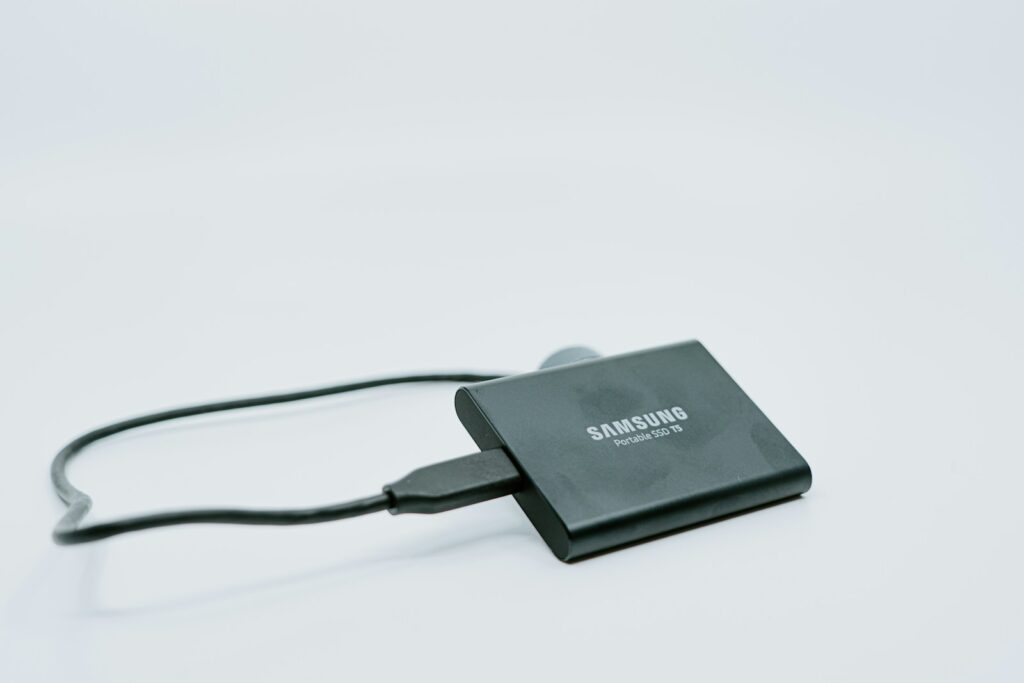
Sometimes, the only way to boost speed is upgrading your hardware.
| Device Type | Typical Speed | Recommended Use |
|---|---|---|
| USB 2.0 Pendrive | 25–35 MB/s | Small files |
| USB 3.0 Pendrive | 80–150 MB/s | Regular transfers |
| External HDD | 80–120 MB/s | Backup, large storage |
| External SSD | 300–900 MB/s | Video editing, large transfers |
| NVMe SSD (USB-C) | 1000–2000 MB/s | Professional use |
If you frequently transfer large files, consider investing in an external SSD or NVMe-based drive for much faster performance.
12. Check for Disk Errors Regularly
Disk errors can slow down read/write operations or cause incomplete transfers.
Run CHKDSK:
- Open Command Prompt as Administrator.
- Type:
chkdsk E: /f /r(Replace E: with your drive letter.)
This command checks and fixes bad sectors, helping restore normal speed.
13. Keep Sufficient Free Space on the Drive
Full drives perform slower, especially SSDs that rely on free blocks for efficient writing.
Tips:
- Keep at least 10–20% free space on HDDs.
- For SSDs, leave 15–25% free for optimal write performance.
If the drive is almost full, delete unwanted files or move data elsewhere.
14. Use the “Copy” Command in CMD or PowerShell
The built-in File Explorer isn’t always the fastest tool for massive transfers.
Faster Alternatives:
- Robocopy (Robust File Copy)
robocopy D:\source E:\destination /E /Z /JThis command is faster and more reliable for large data sets./Ecopies all folders,/Zenables resume,/Juses unbuffered mode for speed. - TeraCopy (third-party tool) also boosts transfer performance and provides detailed progress reporting.
15. Disable USB Selective Suspend
Windows sometimes puts idle USB devices to sleep, which can interrupt or slow transfers.
To Disable:
- Open Control Panel → Power Options → Change plan settings.
- Click Change advanced power settings.
- Expand USB settings → USB selective suspend setting.
- Set it to Disabled and click Apply.
This keeps your USB ports fully active during file transfers.
16. Avoid Running Other Heavy Tasks During Transfers
Multitasking during file transfers (e.g., gaming or video editing) divides CPU and disk resources, reducing performance.
Tip:
Let the transfer finish before launching heavy applications. If necessary, set transfer priority:
- Open Task Manager → Details tab.
- Right-click explorer.exe or robocopy.exe → Set priority → High.
17. Keep Your System Updated
Outdated Windows or chipset drivers can affect storage performance.
Steps:
- Go to Settings → Windows Update → Check for updates.
- Update chipset drivers from your motherboard manufacturer’s website (Intel, AMD).
These updates improve USB handling, file caching, and compatibility with newer devices.
18. Use “Quick Removal” Only When Necessary
Windows defaults to “Quick Removal” mode, which prevents caching to avoid corruption. While safe, it’s slower.
If you prioritize speed and are careful about ejecting properly, use “Better Performance” mode (explained earlier).
19. Avoid Using Old USB Hubs or Extension Cables
Low-quality hubs or long extension cables can degrade signal strength, causing intermittent connections and reduced speeds.
Always use:
- Short (under 1 meter) USB cables
- Certified SuperSpeed (USB 3.0+) cables
- Direct connection to the PC when possible
20. Monitor Drive Health
A slowing drive can be a sign of wear or bad sectors.
Tools to Use:
- CrystalDiskInfo (for health and temperature)
- HD Tune (for speed and error scan)
- Samsung Magician or WD Dashboard (for branded drives)
If you notice many reallocated sectors or warnings, consider replacing the drive.
21. Turn Off Windows Indexing for External Drives
Indexing helps Windows search faster, but it constantly reads/writes to drives, slowing transfers.
How to Disable:
- Right-click the external drive → Properties.
- Uncheck “Allow files on this drive to have contents indexed”.
- Click Apply.
This reduces background disk activity and improves speed.
22. Use High-Performance Power Plan
Windows may throttle USB power to save energy, especially on laptops.
Enable High Performance Mode:
- Open Control Panel → Power Options.
- Select High performance or Ultimate Performance plan.
This ensures maximum power delivery to USB ports and drives.
23. Try Different File Transfer Tools
If Windows File Explorer feels slow, third-party tools can help.
Best Options:
- TeraCopy: Faster and error-recovery friendly.
- FastCopy: Great for large datasets.
- Robocopy (built-in): Reliable command-line solution.
These tools skip slow UI overhead and optimize disk I/O for better performance.
24. Test Your Transfer Speed
You can easily check if your drive is performing as expected.
Use Tools Like:
- CrystalDiskMark: Benchmark read/write speed.
- AS SSD Benchmark: Ideal for SSDs.
- ATTO Disk Benchmark: Works with HDDs and USBs.
Compare results to the manufacturer’s claimed speed. If much lower, cable or port issues may be the cause.
25. Regularly Clean Temporary Files
Temporary cache and system junk slow down overall disk performance.
Clean Up Steps:
- Open Run → type
%temp%→ delete all files. - Use Disk Cleanup from Start menu.
- You can also use Storage Sense from Settings → System → Storage.
A clean system means smoother background operations and faster transfers.
Bonus Tip: Use USB 3.2 Gen 2 or Thunderbolt Drives
If you regularly move massive files such as 4K videos or game backups, upgrade to USB 3.2 Gen 2 or Thunderbolt 3/4 devices.
They offer blazing-fast speeds up to 10–40 Gbps, several times faster than traditional USB 3.0 drives.
Conclusion
Slow data transfers can be frustrating, but with the right adjustments, you can dramatically improve performance.
By using high-speed ports, enabling write caching, keeping firmware and drivers updated, and following the power and file system optimizations listed above, you’ll experience much faster file transfers with your external HDDs, SSDs, and pendrives.
In short, the key to speed lies in hardware quality, system settings, and maintenance habits. With regular care and smart setup, your external drives will perform at their full potential — making backups, file transfers, and media editing much faster and smoother on Windows.
FAQs
1. Why is my external hard drive or USB pendrive transferring data so slowly?
Slow transfer speeds usually occur due to outdated USB ports (like USB 2.0), poor-quality cables, file fragmentation, or background system tasks. Using USB 3.0 or higher ports and disabling background apps can improve performance.
2. How can I check if my USB port is 2.0 or 3.0 in Windows?
Open Device Manager → Universal Serial Bus Controllers. Ports labeled “USB 3.0” or “xHCI” indicate SuperSpeed (3.0 or higher). You can also look for blue-colored USB ports on your PC.
3. Does using a USB 3.0 or USB-C port really make a difference?
Yes, it makes a big difference. USB 3.0 ports can transfer data up to 10 times faster than USB 2.0, while USB-C (USB 3.2 or Thunderbolt) can reach 10–40 Gbps, depending on your hardware.
4. How do I enable “Better Performance” mode for external drives?
Go to Device Manager → Disk Drives → Right-click your drive → Properties → Policies → Better Performance. This allows Windows to use write caching for faster data transfers.
5. Is it safe to use “Better Performance” mode?
Yes, but you must always safely eject the drive before unplugging it. Unplugging without ejecting could corrupt files due to cached data not being written yet.
6. Which file system is best for faster data transfer — NTFS, exFAT, or FAT32?
- NTFS is best for Windows systems and large files.
- exFAT works best for cross-platform use (Windows + macOS).
- Avoid FAT32 as it’s slower and doesn’t support files over 4GB.
7. Will formatting my drive improve transfer speed?
Yes. Formatting removes fragmentation and sets an efficient file structure. Choose NTFS or exFAT for modern drives and uncheck “Quick Format” for best results.
8. Why does my external HDD slow down over time?
Hard drives slow down due to fragmentation, bad sectors, or excessive background indexing. Regularly defragment HDDs and check for errors using chkdsk.
9. How can I check my external drive’s transfer speed?
Use benchmarking tools like CrystalDiskMark, ATTO Disk Benchmark, or HD Tune. These show your drive’s read/write speed and help identify bottlenecks.
10. Can antivirus software slow down my file transfers?
Yes. Real-time scanning checks every file during transfer, reducing speed. You can temporarily disable antivirus protection while transferring trusted files.
11. Should I use a USB hub for external drives?
Use only powered USB 3.0 hubs for multiple drives. Unpowered hubs share bandwidth and power, reducing transfer speeds and causing instability.
12. Why does transferring thousands of small files take longer than one big file?
Windows must process each file individually. Combining small files into a single .zip archive before transfer can significantly speed up the process.
13. What’s the best way to copy large files quickly in Windows?
Use the built-in Robocopy command or third-party tools like TeraCopy or FastCopy. They offer faster speeds, error recovery, and file verification.
14. How do I enable write caching in Windows?
Open Device Manager → Disk Drives → Properties → Policies tab → enable “Write caching on the device.” It temporarily stores data in memory for faster writes.
15. Does defragmenting an HDD improve speed?
Yes. For external HDDs, defragmentation organizes scattered data, allowing faster read/write operations. For SSDs, Windows automatically performs Trim, so no need to defrag manually.
16. Why does my SSD slow down even though it’s new?
SSDs slow down when they’re nearly full or lack TRIM optimization. Keep at least 15–25% free space, and ensure TRIM is enabled in Windows.
17. How do I disable USB Selective Suspend in Windows?
Go to Control Panel → Power Options → Change plan settings → Advanced settings → USB settings → Disable USB selective suspend. This prevents USB ports from entering sleep mode during transfers.
18. How do I stop Windows from indexing my external drive?
Right-click your drive → Properties → Uncheck “Allow files on this drive to have contents indexed.” This reduces background read/write activity and boosts speed.
19. Why does my external drive disconnect during transfers?
This happens if the USB port or cable is faulty, or if USB power saving is enabled. Use a powered hub, disable USB selective suspend, and replace weak cables.
20. Is transferring data faster through an SSD than an HDD?
Absolutely. SSDs are much faster because they have no moving parts and use flash memory. External SSDs can reach speeds of 300–900 MB/s, while HDDs average 80–120 MB/s.
21. Do longer USB cables reduce transfer speed?
Yes. Long or low-quality cables weaken signal strength and cause slow or unstable transfers. Always use short, certified USB 3.0+ cables.
22. How can I check for disk errors that might slow my drive?
Open Command Prompt as Administrator and type:
chkdsk E: /f /r
(Replace E: with your drive letter.) It will scan and fix bad sectors that may reduce speed.
23. Does Windows Update affect transfer speed?
Yes. Background updates and indexing can consume system resources. Pause updates during large file transfers for smoother performance.
24. Can using a different power plan make file transfers faster?
Yes. Switch to High performance or Ultimate performance mode in Power Options. This ensures your USB ports and system run at full power capacity.
25. What are the best tools to speed up or manage large file transfers?
Some of the best tools include:
- TeraCopy: Fast, reliable file copying with error recovery.
- Robocopy (Windows built-in): Ideal for large datasets.
- FastCopy: Lightweight and efficient file mover.
- USBDeview: Checks connection speed and health of USB devices.
✅ Pro Tip:
To maintain long-term performance, regularly clean your drives, keep at least 20% free space, update drivers, and use quality cables and ports.