 author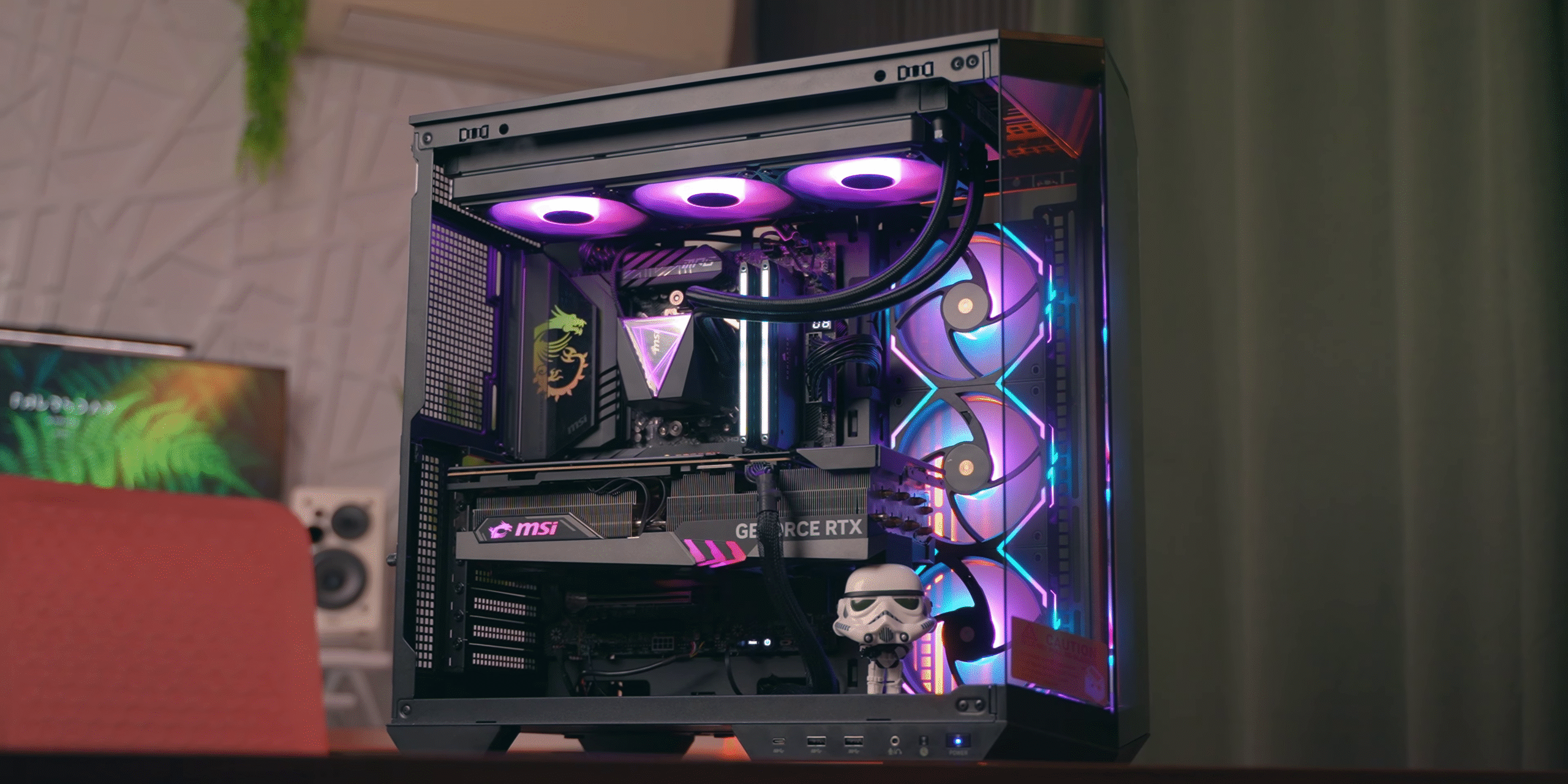
Computer Fan
🖥️ How Many Fans Do You Need in Your PC? The Complete Guide (2025)
Introduction
When building or upgrading a PC, enthusiasts often obsess over processors, graphics cards, and SSDs — but one critical aspect that’s often overlooked is airflow and cooling. Without proper airflow, even the most powerful gaming rig or workstation can overheat, throttle, or fail over time.
So how many cooling fans do you really need in a PC? The answer isn’t always one-size-fits-all. It depends on your components, usage (gaming, editing, general use), case size, ambient temperature, and more.
In this detailed guide, we’ll explore:
- The types of PC fans
- Factors that determine fan requirements
- Ideal fan configurations
- Tips to optimize airflow
- Common myths and mistakes
- Recommendations by use case (gaming, editing, office work)
Let’s help you build a quiet, cool, and efficient PC.
🔧 1. Understanding the Types of PC Fans
Before figuring out how many fans you need, it’s important to know the kinds of fans used in PC builds:
a. Case Fans
- Mounted on the chassis (front, back, top, bottom)
- Used for air intake or exhaust
- Common sizes: 120mm, 140mm, 200mm
b. CPU Cooler Fans
- Comes with air coolers (stock or aftermarket)
- Pulls heat from the processor and expels it toward case fans
c. GPU Fans
- Built into modern graphics cards
- Pull air over the heatsink or expel it via the rear bracket
d. PSU Fans
- Built-in fan in the Power Supply Unit to keep it cool
- Usually exhausts warm air out the back
e. AIO (Liquid Cooling) Fans
- Radiator-mounted fans (usually 120mm to 360mm)
- Work as both CPU coolers and airflow contributors
🧪 2. Factors That Determine Fan Requirements
There’s no universal fan count. Here’s what influences how many you need:
✅ a. Type of Usage
| Usage Type | Recommended Fans | Notes |
|---|---|---|
| Office/Browsing | 1–2 | Minimal heat output |
| Gaming PC | 3–5 | GPU produces high heat |
| Video Editing/3D | 4–6 | Sustained high loads |
| Overclocked PC | 5–7 | Needs aggressive cooling |
✅ b. Case Size and Design
- Mini-ITX Cases: Limited airflow; usually 1–2 fan slots
- Mid-Tower: 3–6 fan slots; ideal for gaming
- Full Tower: 6–10 slots; best for high-performance or dual-GPU builds
✅ c. GPU and CPU Heat Output
- High-end GPUs like RTX 4090 and CPUs like Ryzen 9 7950X generate significant heat
- Overclocking? You’ll need even more airflow
✅ d. Ambient Room Temperature
- Hot and humid climates (like in many parts of India) require better ventilation
- Air-conditioned or cooler rooms are easier on fan setups
🌬️ 3. Airflow Basics: Intake vs Exhaust
For efficient cooling, balance is key between intake (fans pulling air in) and exhaust (fans pushing hot air out).
Ideal Airflow Pattern
- Front / Bottom = Intake
- Rear / Top = Exhaust
A balanced configuration creates a neutral or slightly positive pressure (more intake than exhaust), which:
- Keeps dust out
- Ensures cooler components
- Reduces turbulence
📊 4. How Many Case Fans Do You Really Need?
Let’s break it down by tier:
🔹 Entry-Level PC (Office, Browsing, Light Tasks)
- 1 intake fan (front or bottom)
- 1 exhaust fan (rear)
→ Keeps airflow simple and quiet.
🔹 Mid-Range Gaming PC (1080p / 1440p gaming)
- 2 intake fans (front)
- 1–2 exhaust fans (top + rear)
→ Good airflow for modern GPUs and CPUs.
🔹 High-End Gaming / Editing PC
- 3 front intake
- 1 bottom intake (optional)
- 2 top exhaust
- 1 rear exhaust
→ Excellent airflow and cooling headroom.
🔹 Overclocked or Dual-GPU Workstation
- Full fan setup (6–8 total)
- Consider additional intake on side panel (if supported)
- Add fan control or thermal sensors to avoid overcooling or noise
🔄 5. Fan Orientation & Placement Guide
| Fan Location | Airflow Direction | Purpose |
|---|---|---|
| Front of case | Intake | Bring in cool air from outside |
| Bottom of case | Intake | Feed GPU directly with cool air |
| Side panel | Intake | Optional, cools GPU/VRAM |
| Rear of case | Exhaust | Remove warm air from CPU/GPU |
| Top of case | Exhaust | Expel rising hot air |
⚙️ 6. Fan RPM and Noise Considerations
📈 High RPM = More Cooling but More Noise
Typical fan speeds:
- Quiet fans: 800–1200 RPM
- Balanced fans: 1200–1800 RPM
- High-performance fans: 2000+ RPM (louder)
Use PWM (Pulse Width Modulation) fans to automatically adjust speed based on temperature.
Install fan hubs or use motherboard fan headers to control them via BIOS or software (like ASUS Fan Xpert, MSI Command Center, or BIOS Q-Fan).
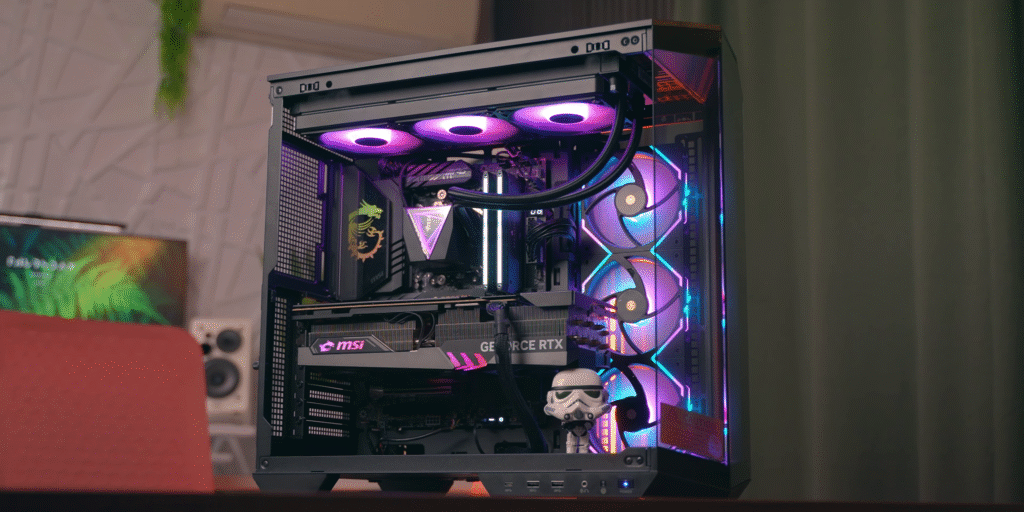
🌀 7. Static Pressure vs Airflow Fans
✅ Airflow Fans
- Best for case ventilation
- Used on front, rear, or top panels
✅ Static Pressure Fans
- Designed to push air through obstructions like radiators or tight mesh
- Ideal for AIO cooling setups and front panel filters
Always check fan specs when shopping — using the wrong type may reduce efficiency.
❌ 8. Common Mistakes in Fan Setup
- Too many exhaust fans = negative pressure, more dust
- All intake fans = hot air buildup
- Fans spinning in wrong direction
- No filters = dust-filled case
- Low-quality fans = short lifespan, noise issues
- Blocking airflow with cables or hard drives
🧠 9. Fan Count Recommendations by Use Case
🎮 Gaming PC (RTX 4060 / Ryzen 5 7600 build)
- 2x 120mm front intake
- 1x rear exhaust
- Optional: 1x top exhaust
→ Balanced cooling for 1440p gaming.
💼 Video Editing (i9 or Ryzen 9, with AIO)
- 3x 140mm front intake
- 2x 140mm top exhaust (with radiator)
- 1x rear exhaust
→ Keeps CPU and GPU under control during long renders.
🧑💻 Office or Home PC (i3/i5 or Ryzen 5, no GPU)
- 1x front intake
- 1x rear exhaust
→ Silent, efficient, minimal.
🔥 Overclocked Rig
- 3x front intake
- 1x bottom intake
- 2x top exhaust
- 1x rear exhaust
→ Use high-performance fans and a fan controller.
💡 10. Tips to Optimize Your Cooling Setup
- Dust filters: Always use them on intake fans to prevent buildup
- Positive air pressure: Slightly more intake than exhaust keeps dust out
- Cable management: Tidy cables improve airflow inside the case
- Fan curves: Set custom RPM curves in BIOS for optimal cooling/noise balance
- Monitor temps: Use tools like HWMonitor, Core Temp, or NZXT CAM to keep an eye on CPU/GPU temperatures
🔍 11. How to Check If You Need More Fans
Signs your PC needs more cooling:
- High idle temperatures (>50°C CPU)
- Thermal throttling under load
- Loud fan noise at all times
- Hot GPU backplate or case surface
- System instability or crashes during gaming
Test using stress tools like:
- AIDA64
- Prime95
- FurMark
- Cinebench R24
📦 12. Best Fan Brands in India (2025)
Here are some top fan options available in India with prices:
| Brand | Model Example | Price (INR) |
|---|---|---|
| Cooler Master | SickleFlow 120 ARGB | ₹800–1,200 |
| DeepCool | CF120/CF140 | ₹700–1,100 |
| Noctua | NF-F12 PWM | ₹1,800–2,500 |
| Arctic | F12 PWM / P12 | ₹500–1,000 |
| Corsair | AF120 / ML120 | ₹1,200–2,000 |
| NZXT | Aer RGB 2 | ₹2,000–3,500 |
📌 Final Verdict: How Many Fans Should You Install?
There’s no one perfect number, but general advice is:
- Basic builds = 2 fans
- Gaming PCs = 3–5 fans
- High-end setups = 5–7 fans
- Overclocked or editing rigs = 6–8+ fans
The goal is not just adding fans, but balancing intake and exhaust, managing airflow, and maintaining optimal component temperatures.
📈 Conclusion
Whether you’re assembling a sleek gaming machine, a rendering powerhouse, or a quiet office desktop, cooling matters more than most people think. Proper airflow improves system longevity, stability, and performance — and it’s surprisingly affordable to get right.
The number of fans you need depends on your build type, case, hardware, and usage style, but with the right planning, you can build a system that stays cool, quiet, and powerful.
SEO Keywords: How many fans in gaming PC, PC fan setup guide India, airflow configuration PC, case fan placement, best cooling setup for PC, PC fan requirement calculator, optimal fan layout
FAQs
- How many case fans does a typical gaming PC need?
A mid-range gaming PC usually needs 3 to 5 fans — 2 or 3 intake fans and 1 or 2 exhaust fans. - Is one fan enough for a PC?
Yes, for basic office use or web browsing, one intake and one exhaust fan are usually sufficient. - What’s the ideal fan setup for airflow?
The best setup is front/bottom for intake and rear/top for exhaust, ensuring a balanced airflow. - How many fans do I need for an overclocked system?
Overclocked systems benefit from 5 to 7 fans or more, depending on component heat output. - Can too many fans cause problems?
Yes. Too many fans can create turbulence, noise, and even disrupt airflow efficiency if poorly configured. - Should intake fans be filtered?
Yes. Intake fans should have dust filters to prevent buildup and maintain airflow efficiency. - What is positive and negative air pressure in a PC case?
Positive pressure = more intake than exhaust; helps keep dust out. Negative = more exhaust; may draw dust in. - Is it better to have more intake or exhaust fans?
Slightly more intake fans (positive pressure) is ideal for cooling and dust prevention. - Do all fans need to be the same size?
No. Many cases support mixed sizes (e.g., 120mm intake, 140mm exhaust). Choose what fits best. - How do I know if my PC needs more cooling?
If you’re experiencing high temperatures, noise, or performance throttling, you may need more or better-positioned fans. - Can I control fan speed automatically?
Yes. Use PWM fans connected to the motherboard, and configure fan curves via BIOS or software. - Do I need fans if I use liquid cooling?
Yes. Even with liquid cooling (AIO), you still need case fans for overall airflow and to cool other components. - What’s the difference between airflow and static pressure fans?
Airflow fans move more air in open areas. Static pressure fans are better for pushing air through radiators or filters. - Is bottom-mounted intake fan useful?
Yes. It helps cool the GPU directly, especially in high-performance gaming or editing rigs. - Are top exhaust fans necessary?
Not mandatory but recommended. Since hot air rises, top exhaust fans help remove heat efficiently. - Can I use side panel fans?
Yes, if your case supports them. Side fans offer direct airflow to the GPU and motherboard components. - How can I check fan airflow direction?
Most fans have arrows on the frame showing airflow direction. Generally, air flows from open side to frame side. - What is the best RPM for case fans?
800–1200 RPM is good for quiet builds. High-performance fans can go up to 2000+ RPM, but may be noisy. - Can I use 3-pin fans instead of 4-pin (PWM) fans?
Yes, but 3-pin fans have limited speed control. Use 4-pin for automatic speed adjustment. - What happens if fans are installed backwards?
It disrupts airflow, leading to hot air being trapped and poor cooling performance. - Which brands make the best case fans in India?
Top brands include Cooler Master, DeepCool, Noctua, Arctic, Corsair, and NZXT. - Are RGB fans less efficient than normal fans?
Not necessarily. Efficiency depends on fan blade design and RPM, not lighting. RGB is mostly aesthetic. - Can I connect multiple fans to one motherboard header?
Yes, using a fan hub or splitter. Just ensure you don’t exceed the power limit (usually ~1A per header). - How often should I clean my PC fans?
Every 2–3 months in dusty environments, or at least twice a year, using compressed air or a soft brush. - Do more fans mean better performance?
More fans help only if airflow is optimized. Quality, placement, and direction matter more than sheer number.