 author
Windows Tips and Tricks
All Hidden Tricks in Windows 10 You Should Know
Windows 10 is one of Microsoft’s most powerful and feature-rich operating systems. While most users are familiar with basic options like the Start Menu and Taskbar, there are dozens of hidden tricks that can make your PC experience faster, smarter, and more enjoyable. These secret features are tucked deep inside Windows, often unnoticed by everyday users.
In this article, you’ll discover all the best hidden tricks in Windows 10, from productivity boosters to system tweaks that help you get the most out of your computer.
1. Secret Start Menu (Quick Access Menu)
If you right-click the Start button or press Windows + X, you’ll find a hidden “Power User Menu.”
This menu gives instant access to vital tools like:
- Device Manager
- Disk Management
- Power Options
- Command Prompt or Terminal (Admin)
- Task Manager
It’s a faster alternative to navigating through Control Panel or Settings.
2. Shake to Minimize Windows
Have too many windows open? Grab the title bar of the window you want to keep open, and shake it with your mouse.
All other windows will instantly minimize!
Shake it again to restore them.
This feature, called Aero Shake, helps keep your desktop organized quickly.
3. Hidden God Mode Folder
The God Mode folder unlocks nearly 200 advanced settings from across the Control Panel in one place.
To enable it:
- Create a new folder on your desktop.
- Rename it to:
GodMode.{ED7BA470-8E54-465E-825C-99712043E01C} - Press Enter — it’ll instantly transform into a special icon.
Open it to access advanced customization, admin tools, and system settings.
4. Virtual Desktops for Better Productivity
Press Windows + Ctrl + D to create a new virtual desktop.
You can switch between desktops using Windows + Ctrl + → or ←.
It’s perfect for multitasking — for example, one desktop for work, another for entertainment.
To view all open desktops, press Windows + Tab.
5. Clipboard History Shortcut
Did you know Windows 10 can remember multiple copied items?
Press Windows + V to open the Clipboard History.
You can pin frequently used items and access them anytime — great for writing, coding, or data entry.
To enable it:
Go to Settings → System → Clipboard → Clipboard history → Turn On.
6. Built-in Screen Recorder (Game Bar)
Even if you’re not a gamer, the Xbox Game Bar can record any screen activity.
Press Windows + G, then click the Record button.
Or use Windows + Alt + R to start recording directly.
You can use this to record tutorials, gameplay, or app demos without third-party software.
7. Night Light for Eye Comfort
Working late at night?
Turn on Night Light to reduce blue light and prevent eye strain.
Go to Settings → System → Display → Night Light and schedule it to turn on automatically during evening hours.
8. Hidden Emoji Keyboard
Press Windows + . (period) or Windows + ; (semicolon) to open the emoji keyboard instantly.
It includes emojis, symbols, and even kaomoji text faces like (╯°□°)╯︵ ┻━┻.
Perfect for chatting or adding fun to social media posts.
9. Windows Sandbox (For Testing Software Safely)
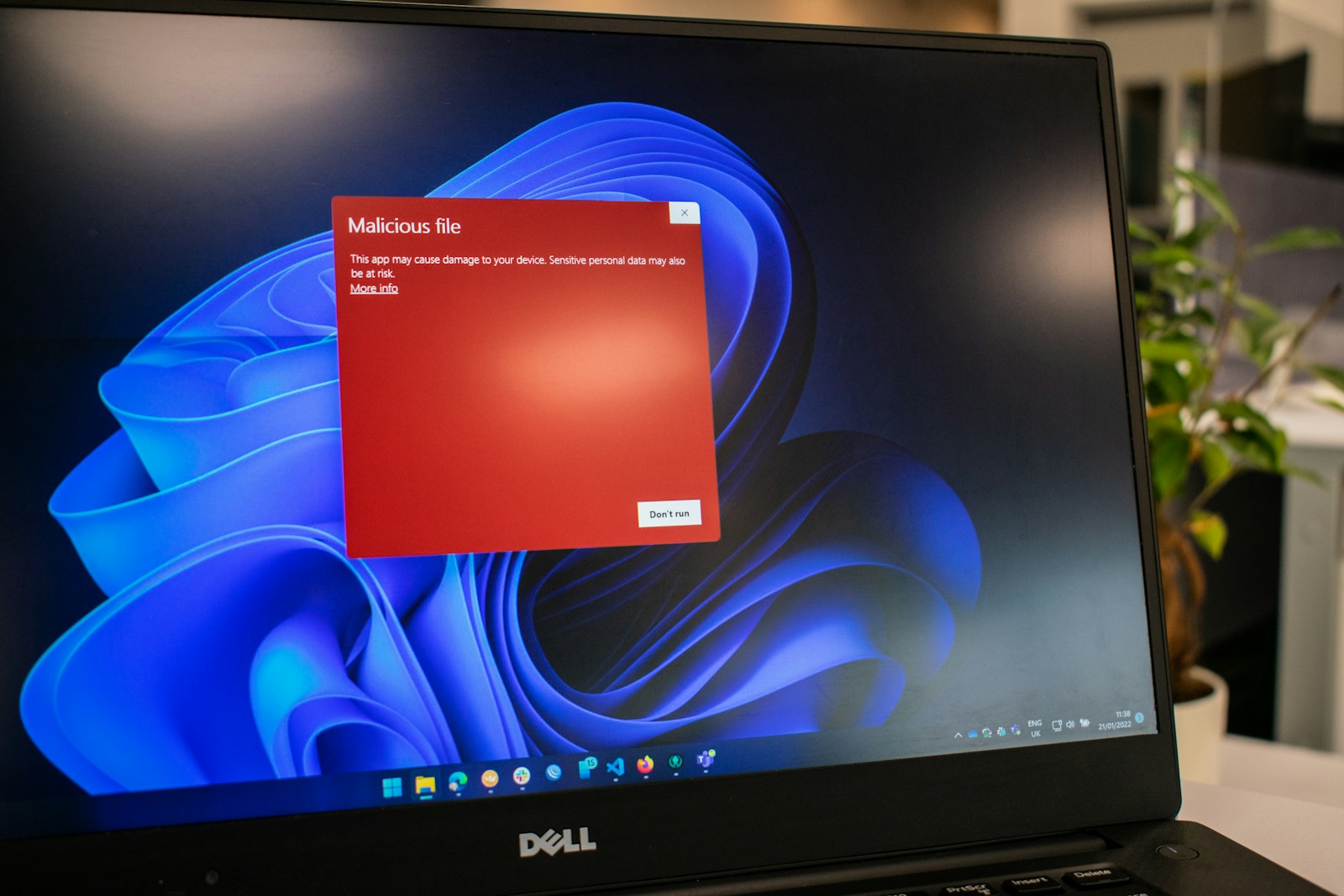
Available in Windows 10 Pro or Enterprise, the Windows Sandbox creates a temporary virtual Windows environment.
Anything you install or test inside it vanishes after closing it — perfect for testing unknown software safely.
To enable:
- Go to Control Panel → Programs → Turn Windows features on or off.
- Check Windows Sandbox.
- Restart your PC.
10. File Explorer Dark Mode
You can enable Dark Mode to reduce glare and save battery on laptops.
Go to Settings → Personalization → Colors, and choose Dark under “Choose your default app mode.”
11. Slide to Shut Down
Want a cool way to shut down your PC?
Press Windows + R, type:
slidetoshutdown.exe
and press Enter.
You’ll see a sliding screen from the top — drag it down to shut down your computer.
You can even create a desktop shortcut for it!
12. Secret System Information Command
To instantly see all your system details, open Run (Windows + R) and type:
msinfo32
This opens the System Information tool showing everything — hardware, BIOS, RAM, drivers, and more.
13. Hidden Battery Report
For laptop users, you can generate a detailed battery health report using Command Prompt.
Open CMD as Administrator and type:
powercfg /batteryreport
It creates an HTML file showing charge cycles, capacity history, and battery wear levels.
14. Find Large Files Quickly
If your disk is full, use the Storage Sense feature.
Go to Settings → System → Storage → Show more categories, then click Temporary Files or Other.
You can also use File Explorer’s search filters:
Type size:>500MB to find all files larger than 500MB.
15. Snip & Sketch Screenshot Tool
Press Windows + Shift + S to instantly open the screenshot snipping tool.
You can capture:
- Fullscreen
- Window
- Rectangular
- Freeform shapes
Screenshots are copied to the clipboard automatically for easy pasting.
16. Hidden Storage Analyzer (Storage Sense)
Storage Sense automatically deletes unnecessary files like temp data and recycle bin items.
To enable:
Settings → System → Storage → Configure Storage Sense.
Set it to run automatically every week or month to keep your PC clean.
17. Use Voice Commands (Cortana or Voice Access)
Press Windows + H to open the dictation feature.
You can speak to type in any text field, email, or document.
For accessibility, you can also enable Voice Access to control your PC using speech.
18. Secret Troubleshooters
Windows 10 has many built-in troubleshooters hidden in Settings.
Go to Settings → Update & Security → Troubleshoot → Additional troubleshooters.
Here you’ll find automated fixes for sound, Bluetooth, updates, network, and more.
19. Background App Control
To save memory and battery:
Go to Settings → Privacy → Background apps and turn off apps you don’t need running in the background.
20. Dynamic Lock Using Your Phone
You can use your Bluetooth-enabled smartphone to automatically lock your PC when you walk away.
Go to Settings → Accounts → Sign-in options → Dynamic Lock and pair your phone.
Windows will detect when your phone leaves range and lock your PC automatically.
21. Use Storage Sense to Free Up Disk Space
Press Windows + I → System → Storage, then turn on Storage Sense.
It deletes temporary files and manages OneDrive content automatically.
You can even schedule it for automatic cleaning every week or month.
22. Enable Hidden Administrator Account
Windows hides a powerful built-in admin account by default.
To enable it, open CMD as Administrator and type:
net user administrator /active:yes
To disable it again, type:
net user administrator /active:no
23. Use Focus Assist to Block Notifications
Focus Assist hides notifications while you work or play games.
Go to Settings → System → Focus Assist, and choose Priority only or Alarms only mode.
You can also schedule quiet hours automatically.
24. Restore the Classic Control Panel
Even though Microsoft pushes Settings, you can still open the old Control Panel.
Press Windows + R, type:
control
and press Enter.
You can also pin it to your taskbar for faster access.
25. Secret “Steps Recorder” Tool
Windows has a built-in screen capture tool that documents every click and screenshot.
Press Windows + R, type:
psr
and press Enter.
It’s perfect for recording issues or creating tutorials.
26. Enable Clipboard Sync Across Devices
Sync your clipboard between multiple devices:
Go to Settings → System → Clipboard → Sync across devices → On.
Now anything you copy on one PC will be available on another connected to your Microsoft account.
27. Use the Run Box for Hidden Shortcuts
Press Windows + R and try these commands:
temp→ Opens temporary files folderprefetch→ Opens cached program dataappwiz.cpl→ Opens Programs & Featuresncpa.cpl→ Opens Network Connectionsmain.cpl→ Opens Mouse settings
These shortcuts save you time digging through menus.
28. Secret Command to Open Device Manager
Instead of searching, just press Windows + R, type:
devmgmt.msc
and press Enter.
It opens Device Manager instantly to manage drivers and hardware.
29. Enable Hidden Startup Apps Manager
You can manage startup apps directly in Task Manager.
Press Ctrl + Shift + Esc → Startup tab.
Here you can disable programs that slow down boot time.
30. Connect Android Phone Using “Your Phone” App
Windows 10 lets you connect your Android phone to your PC for calls, SMS, and photos.
Go to Settings → Phone → Add a phone, and follow the on-screen steps.
31. Use Nearby Sharing for Fast File Transfer
Go to Settings → System → Shared experiences → Nearby sharing and turn it on.
You can share files instantly with nearby Windows 10 devices via Bluetooth or Wi-Fi.
32. Hidden Disk Cleanup Tool
Type cleanmgr in Run (Windows + R).
It opens the classic Disk Cleanup utility, letting you safely delete cache, system files, and update leftovers.
33. Customize Power Menu Options
You can customize what the Power button or lid close does:
Control Panel → Hardware and Sound → Power Options → Choose what closing the lid does.
You can make your laptop sleep, hibernate, or shut down automatically.
34. Record Your Screen Using PowerPoint
If you have Microsoft Office, PowerPoint can record your screen:
Go to Insert → Screen Recording, select an area, and start recording.
You can save it as an MP4 file afterward.
35. Access Reliability Monitor
Windows Reliability Monitor is a hidden diagnostic tool.
Press Windows + R, type:
perfmon /rel
It shows a detailed timeline of system crashes, warnings, and updates to help you troubleshoot problems.
36. Use Storage Diagnostic Reports
Open CMD as Administrator and type:
perfmon /report
Windows will generate a System Diagnostics Report that shows performance, errors, and recommendations.
37. Hidden Shortcut to Open Settings Anywhere
Press Windows + I — this instantly opens the Settings app from anywhere, whether you’re on the desktop or inside another program.
38. Secret Shortcut to Open File Explorer Home
Press Windows + E to open This PC instantly — one of the oldest but most useful shortcuts in Windows history.
39. Clipboard Cloud Sync Trick
If you use multiple Windows 10 PCs, turn on clipboard sync to copy text or images across devices.
Go to Settings → System → Clipboard → Sync across devices.
40. Use God Mode + Run Commands Together
Combine God Mode with Run Commands for ultimate power-user control — create shortcuts for tasks like:
- System Restore:
rstrui - Device Manager:
devmgmt.msc - Disk Management:
diskmgmt.msc - Control Panel:
control
Conclusion
Windows 10 is filled with hidden tools, shortcuts, and tricks that can make your daily workflow much smoother. From productivity boosters like virtual desktops and clipboard history to deep system tweaks like God Mode and Sandbox, these features show how powerful Windows truly is when you know where to look.
Try exploring these hidden tricks one by one, and you’ll unlock a faster, cleaner, and more customized Windows experience without needing any external software.
FAQs
1. What are hidden tricks in Windows 10?
Hidden tricks in Windows 10 are lesser-known features and shortcuts that enhance productivity, security, and customization. They’re not always visible in standard menus but can be accessed through shortcuts, settings, or commands.
2. How can I open the hidden Power User Menu in Windows 10?
Right-click the Start button or press Windows + X to open the Power User Menu. It gives you quick access to tools like Device Manager, Disk Management, Task Manager, and Command Prompt.
3. What is “God Mode” in Windows 10?
“God Mode” is a hidden folder that gives access to nearly all Windows settings in one place.
To enable it, create a new folder and rename it:
GodMode.{ED7BA470-8E54-465E-825C-99712043E01C}
Open it to explore 200+ control options.
4. Can I create multiple desktops in Windows 10?
Yes. Press Windows + Ctrl + D to create a new virtual desktop. You can switch between desktops using Windows + Ctrl + → or ←. This helps organize work and personal tasks separately.
5. How do I open the hidden emoji panel?
Press Windows + . (period) or Windows + ; (semicolon) to open the emoji and symbol keyboard instantly.
6. Is there a built-in screen recorder in Windows 10?
Yes. Press Windows + G to open the Xbox Game Bar, which lets you record screen activity or gameplay without extra software.
7. How can I quickly take a screenshot on Windows 10?
Press Windows + Shift + S to use the Snip & Sketch tool. You can capture a portion of your screen or the entire display and paste it instantly.
8. What is Aero Shake in Windows 10?
Aero Shake lets you minimize all windows except the one you’re using. Grab a window by the title bar and shake it — all others will minimize. Shake again to restore them.
9. How do I use Clipboard History?
Press Windows + V to view copied items. You can pin frequently used text or images and paste them later. Enable it via Settings → System → Clipboard.
10. What is Windows Sandbox used for?
Windows Sandbox (available in Pro and Enterprise editions) lets you test apps or files safely in an isolated virtual environment that resets after each use.
11. How do I generate a battery health report in Windows 10?
Open Command Prompt (Admin) and type:
powercfg /batteryreport
It saves a detailed battery report as an HTML file showing charge cycles and capacity health.
12. Can I use Night Light to reduce eye strain?
Yes. Go to Settings → System → Display → Night Light. It reduces blue light from your screen for more comfortable nighttime viewing.
13. What does “Slide to Shut Down” do?
It’s a hidden shutdown trick. Press Windows + R, type slidetoshutdown.exe, and press Enter. Drag the screen down to turn off your PC stylishly.
14. How do I find out system information quickly?
Press Windows + R, type msinfo32, and hit Enter. This opens the System Information panel showing all your hardware and software details.
15. How can I enable hidden administrator mode?
Run Command Prompt as Administrator and type:
net user administrator /active:yes
Log in as Administrator for advanced access. Disable it later by replacing “yes” with “no”.
16. What is the secret tool called Steps Recorder?
Steps Recorder automatically captures screenshots and mouse actions as you reproduce an issue.
Run it by typing psr in the Run dialog (Windows + R).
17. Can I sync clipboard items across multiple devices?
Yes. Go to Settings → System → Clipboard → Sync across devices → On.
Anything you copy on one PC can be pasted on another using the same Microsoft account.
18. What is Focus Assist in Windows 10?
Focus Assist blocks notifications while working or gaming.
Enable it via Settings → System → Focus Assist, and choose “Priority only” or “Alarms only.”
19. How can I use the hidden Storage Sense feature?
Storage Sense automatically deletes temporary and unused files.
Turn it on under Settings → System → Storage → Configure Storage Sense.
20. How do I open the classic Control Panel?
Press Windows + R, type control, and hit Enter.
You can also create a shortcut or pin it to the taskbar for quick access.
21. How can I check my computer’s reliability and crash history?
Press Windows + R, type:
perfmon /rel
This opens the Reliability Monitor, which shows app failures, driver issues, and Windows errors.
22. Can Windows 10 record my screen without third-party apps?
Yes. Use Xbox Game Bar (Windows + G) or PowerPoint → Insert → Screen Recording. Both can record your screen and save as video files.
23. What’s the hidden shortcut to open Task Manager fast?
Press Ctrl + Shift + Esc — it opens Task Manager instantly without any menus.
24. What’s the purpose of Dynamic Lock?
Dynamic Lock uses Bluetooth to automatically lock your PC when your paired smartphone moves out of range.
Enable it in Settings → Accounts → Sign-in options → Dynamic Lock.
25. How do I access all hidden commands quickly?
Use the Run box (Windows + R) and try commands like:
appwiz.cpl→ Programs & Featuresncpa.cpl→ Network Connectionsmain.cpl→ Mouse settingsdiskmgmt.msc→ Disk Management
These commands reveal hidden system tools instantly.
✅ Final Tip:
Windows 10 hides dozens of productivity features beneath its surface. Learning these shortcuts, Run commands, and hidden menus can save you time and make your system faster and more efficient. Explore them gradually to unlock the full power of your PC.